iPhone data control
iPhone data usage: how to check it, reduce it, and travel without surprise charges
A practical settings-first guide for travelers who want to see which apps are using data, stop background leaks, keep maps and rideshare working, and avoid roaming costs while using a travel eSIM.

Quick answer
Where to check data usage on an iPhone
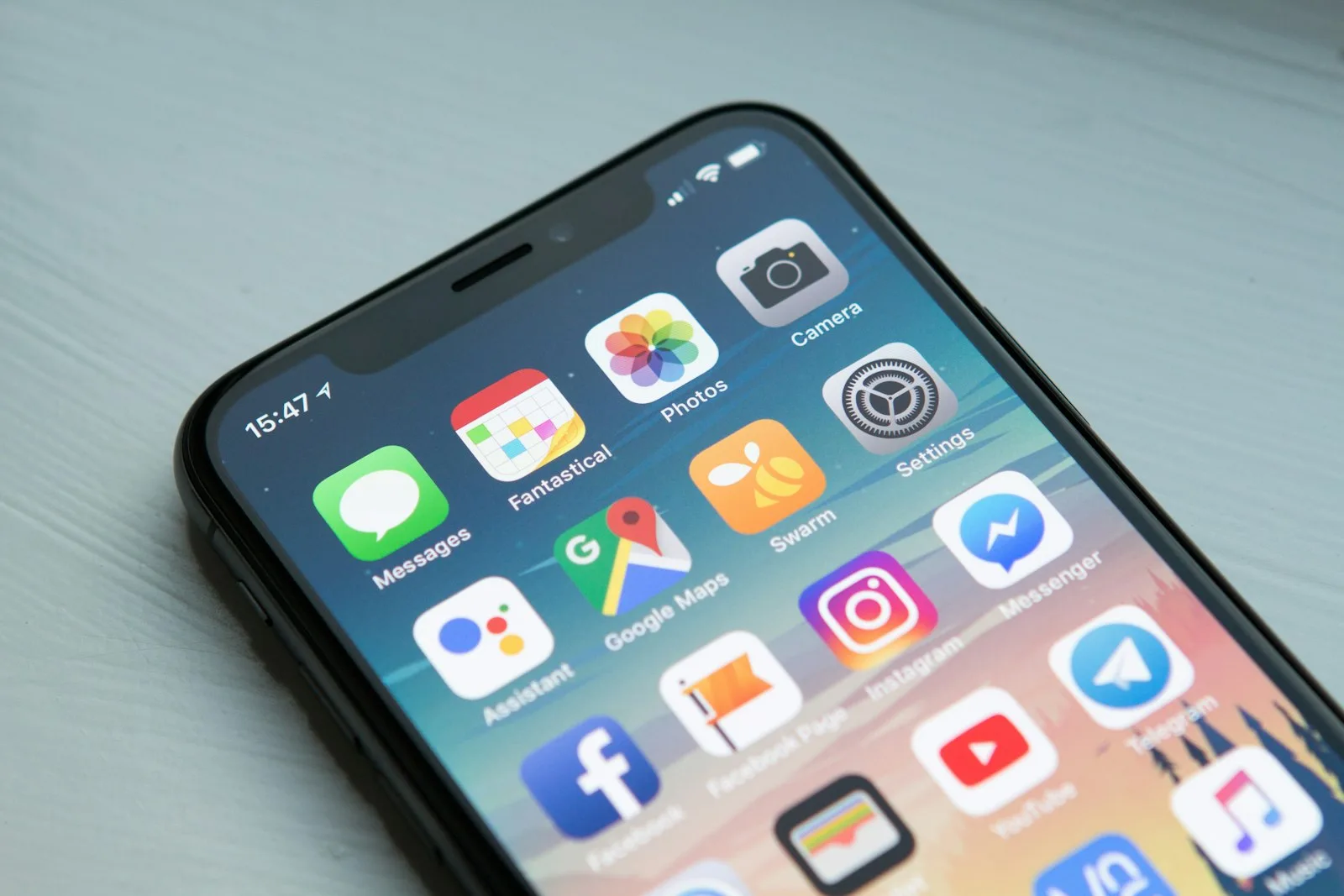
Open Settings, tap Cellular or Mobile Data, then scroll to see app-by-app usage for the current period. Reset statistics before a trip if you want a clean travel-only count. For a dual-SIM setup, make sure your travel eSIM is selected for mobile data and your home line is not quietly roaming in the background.
Settings to change before you fly
Turn off cellular data for heavy apps you will not need abroad.
Disable background app refresh for social, cloud, and shopping apps.
Set Photos, iCloud backups, app updates, and podcast downloads to Wi-Fi only.
Use Low Data Mode on the travel eSIM if you bought a small plan.
App-by-app data priorities for travel
| App type | Keep cellular on? | Why |
|---|---|---|
| Maps and rideshare | Yes | These are essential when you land or move between hotels. |
| Messaging | Yes | Useful for family updates, hotel messages, and trip coordination. |
| Photos and cloud backup | No | Uploads can burn through a small eSIM plan quickly. |
| Streaming | Usually no | Download shows on Wi-Fi before travel. |
| Social video apps | Limit | Stories and autoplay are easy data drains. |